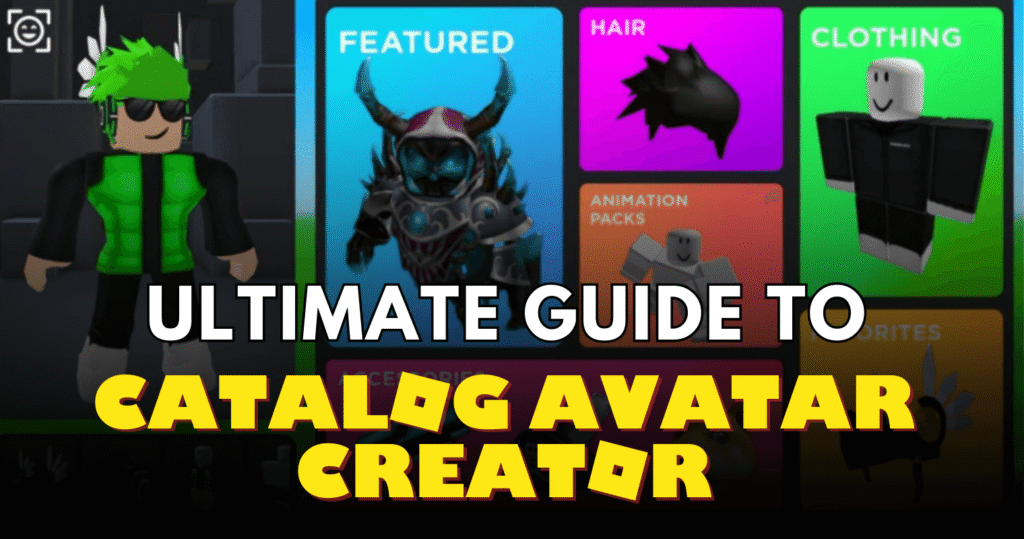
Catalog Avatar Creator, developed by Muneeb (known as itsMuneeeb), is Roblox’s premier in-experience avatar editor. Launched years ago, it boasts a massive community group with over 23 million members and routinely sees thousands of concurrent players. The core idea is simple: spawn into a blank world, access the full Roblox catalog, try on anything for free, fine-tune positions, and either purchase for your inventory or share your creation via a unique code.
Unlike typical games with quests or combat, this is pure creativity. You can preview expensive limiteds, layer accessories creatively, and even set up display booths for friends. Purchases made here go straight to your Roblox inventory, usable across all experiences. It’s won awards for fashion innovation and powers everything from player OCs to dev NPCs.
How to Play
Getting started is straightforward. Once you join a server (public or private—more on that later), you’ll spawn in an open area. The main UI pops up automatically or via a button in the top bar.
- Browse Items: Hit the “Stores” or “Catalog” tabs. Stores let you shop community-curated collections; Catalog mirrors Roblox’s official shop with categories like Hats, Faces, and Bodies.
- Try On: Click any item to equip it instantly—no Robux needed for previews. Layer as many as your avatar allows (up to Roblox limits).
- Edit and Pose: Select an accessory, grab the edit tool (usually a wrench icon), and drag to reposition, rotate, or resize. Tilt your torso first for better hand/leg accessory fits.
- Load Community Outfits: Open “Community Outfits,” enter a code (like 1560E9), and watch it apply everything—body scale, clothes, accessories.
- Purchase and Save: Love it? Click the item’s three dots and buy. Hit the Roblox avatar icon (bottom-left) to apply changes to your account. Use “/export” in chat to package for Roblox Studio.
- Share Your Creation: Publish to Community Outfits for a shareable code. Others can load it instantly.
Private servers are free, ideal for uninterrupted editing.
Core Gameplay Features
- Free Try-Ons: Test any catalog item, including UGC limiteds and bundles.
- Advanced Editing: Full control over accessory position, rotation, scale. Create impossible layers like multi-hair combos.
- Community Outfits: 30M+ user creations, searchable and loadable via codes.
- Booths and Clones: Type “/booth” for a display stand, “/clone” or “/npc” for posing multiples.
- Quick Commands: Chat shortcuts like “/r6” or “/r15” to switch rigs, “/headless” for effects, “/speed [16]” for faster movement.
- Bulk Purchase: Buy entire outfits at once via Roblox API.
- Photo/Freecam Modes: Capture screenshots easily.
No gamepasses block core features; everything essential is free.
Controls (PC & Mobile)
PC:
- Movement: WASD keys.
- Look around: Mouse.
- UI Navigation: Mouse clicks/tabs.
- Edit Accessories: Select item > Edit tool > Drag/rotate with mouse.
- Chat Commands: Type in chat bar (bottom).
Mobile:
- Movement: Left thumbstick.
- Camera: Right thumbstick or drag.
- UI: Tap buttons; swipe to browse.
- Edit: Tap accessory > Pinch/Drag for position/scale; rotate via on-screen handles.
- Portrait Mode: “/portrait” (use sparingly).
- Freecam: Camera icon for photo mode.
Controls feel native to Roblox, with intuitive touch edits on mobile.
Tips and Beginner Strategies
Start in a private server (/vip or /private) to avoid crowds—it’s free and glitch-free. Search “Free” in Stores for no-cost UGC. For complex fits, equip a body accessory first, pose the torso, then adjust others.
Layer strategically: Front/back accessories dodge clipping. Use “/clone” to test group poses. Publish outfits early to get feedback and roles in the group.
Personal gameplay observation: The first time I layered five hats into a wild hair explosion, it clicked—adjusting scales by 0.1 increments turns basic looks into showstoppers, but it takes patience to avoid the “floating mess” phase.
Chain commands like “/r15 /clone /booth” for quick showcases. Clear chat with “/clear” to declutter.
Progression System / Upgrades / Rebirth (if available)
Catalog Avatar Creator skips traditional levels or rebirths—it’s endless sandbox play. Progress shines in the group: Earn “Regular Customer” after 100+ in-game buys, “Outfit Designer” for 100K+ try-ons on your publishes, or “UGC Creator” for stores. These unlock badges and bragging rights, encouraging sharing.
Why Players Enjoy This Game
It’s the ultimate “what if” tool for Roblox fashion. Preview rare items risk-free, craft hyper-detailed OCs, or prep thumbnails for YouTube. The community vibe thrives on codes—X and Reddit buzz with shares. Devs love exporting rigged avatars. With constant catalog updates, it’s always fresh without grind.
Frequently Asked Questions
1. Do purchases in Catalog Avatar Creator go to my main inventory? Yes, bought items transfer directly to your Roblox account for use everywhere.
2. How do I enter an outfit code? Open Community Outfits > Paste code > Load. Works only in supported games like this one.
3. Can I adjust accessories on mobile? Absolutely—tap to select, drag handles to move/rotate/scale.
4. Are private servers free? Yes, use /vip or /private command.
5. How do I export to Roblox Studio? Type “/export” in chat to save as a package.
6. What’s the best way to avoid clipping? Tilt body parts first, then edit accessories in small increments.
7. Any free rewards? Group roles reward activity; search free UGC in Stores.