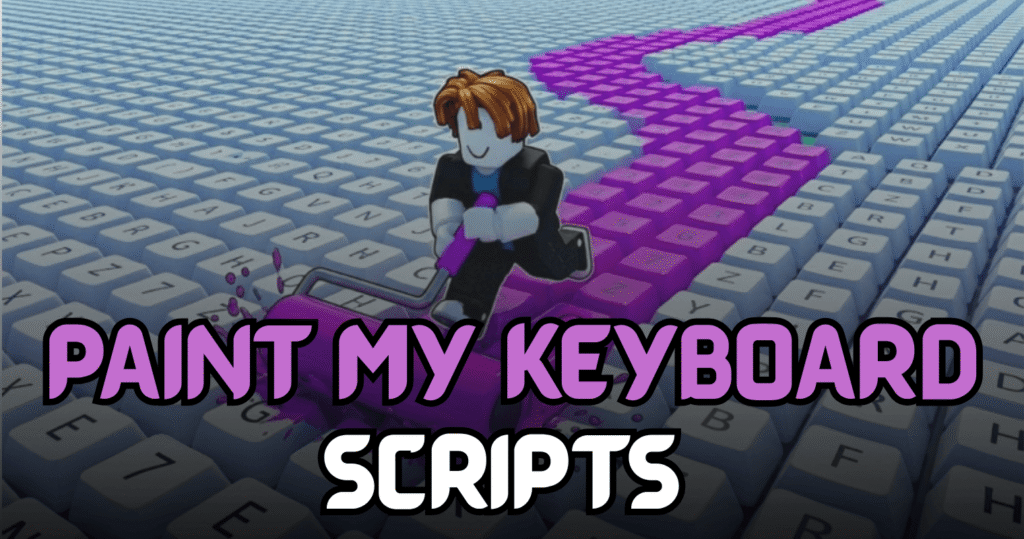
Paint My Keyboard is a Roblox simulation game where players paint keyboards, unlock new upgrades, hire workers, and rebirth to earn better rewards. This Incredible Paint My Keyboard Script automates many of these tasks with powerful Lua features, helping players progress faster while reducing repetitive grinding.
Auto Dupe Skin, Auto Buy Paint & More – Lua Script Features
This Lua script is designed to automate important gameplay systems, allowing players to upgrade their workshop, hire workers, purchase paint automatically, and improve roll speed without constant manual interaction. It also includes an automatic skin duplication feature and rebirth automation for quicker progression.
Script Features
| Feature | Description |
|---|---|
| Auto Upgrade | Automatically purchases available upgrades |
| Auto Hire Worker | Hires workers without manual input |
| Auto Buy Paint | Buys paint automatically |
| Auto Dupe Skin | Automates skin duplication |
| Auto Upgrade Roll Speed | Improves roll speed automatically |
| Auto Upgrade Luck Roll | Increases roll luck |
| Auto Rebirth | Performs rebirth automatically |
| Fixed GUI | Includes updated interface improvements |
| Mobile Ready | Compatible with supported mobile executors |
loadstring(game:HttpGet("https://raw.githubusercontent.com/ZyroYonk/StarForgeHubv1/refs/heads/main/Vlood"))()
Benefits of using these scripts
This script helps players progress much faster by automating upgrades, hiring workers, and purchasing paint. The Auto Dupe Skin feature simplifies collecting skins, while automatic rebirth and roll upgrades improve long-term progression. These features reduce repetitive actions and allow players to focus more on expanding their workshop.
How to Use These Scripts
- Install a Roblox executor that supports Lua scripts.
- Launch Roblox and join Paint My Keyboard.
- Wait until the game has fully loaded.
- Open your preferred executor.
- Copy the Lua script from this article.
- Paste the script into the executor window.
- Click the Execute button.
- Wait for the script interface to load.
- Enable the automation features you want to use.
- Verify that the selected features are working correctly before continuing gameplay.
For the best compatibility, use an updated executor and execute the script after the game has completely loaded.