
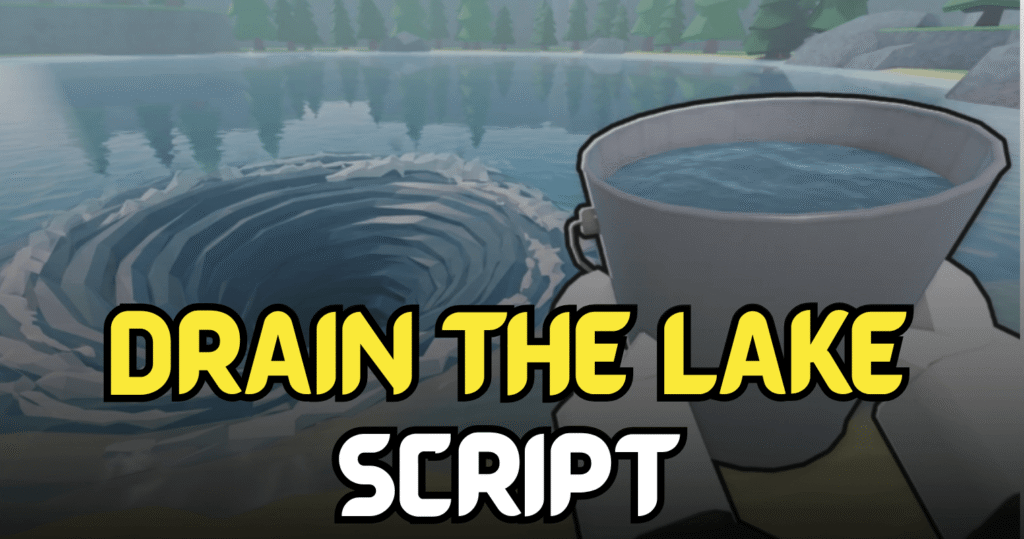
Drain the Lake is a Roblox simulator where players collect water, gather tokens, unlock upgrades, and improve their skills to progress faster. This Brilliant Drain the Lake Script automates the game’s most repetitive tasks with useful Lua features like Auto Collect Water, Auto Collect Tokens, Auto Poured, Auto Open Chests, and Auto Buy Skill Tree, allowing players to earn rewards with much less effort.
Auto Collect Water, Auto Open Chests & More – Lua Script Features
This Lua script is designed to simplify progression by automating water collection, token farming, chest opening, and skill upgrades. It helps players spend less time performing repetitive actions while continuously improving their character and unlocking new upgrades.
Script Features
| Feature | Description |
|---|---|
| Auto Collect Water | Automatically gathers water from the lake |
| Auto Collect Tokens | Picks up nearby tokens automatically |
| Auto Poured | Automatically pours collected water |
| Auto Open Chests | Opens available chests automatically |
| Auto Buy Skill Tree | Purchases skill tree upgrades automatically |
| Easy Automation | Reduces repetitive gameplay tasks |
| Faster Progression | Helps unlock upgrades more quickly |
loadstring(game:HttpGet("https://lua-guard.xyz/api/raw/cb9f684284ed53c786b3ac1616aa27cb"))()
Benefits of using these scripts
This script improves progression by automating the entire resource collection process. Auto Collect Water and Auto Collect Tokens help generate resources continuously, while Auto Poured and Auto Open Chests save valuable time. The Auto Buy Skill Tree feature ensures your character keeps improving automatically, making long farming sessions more productive.
How to Use These Scripts
- Install a Roblox Lua executor that supports script execution.
- Open Roblox and join Drain the Lake.
- Wait for the game to load completely.
- Launch your preferred Lua executor.
- Copy the script provided in this article.
- Paste it into the executor window.
- Click the Execute button.
- Wait for the script menu to appear.
- Enable the automation features you want to use.
- Monitor the script occasionally to ensure everything continues running smoothly.
For the best compatibility and stable performance, execute the script only after the game has fully loaded and use an updated Roblox executor.